Tuesday, 2 August 2011

How to sychronize your data between your home PCs, workplace PCs, laptops, pen drives, and portable harddrives?

Nowadays everybody got several pendrives or portable harddrives, and home PC and workplace PC. Sometimes you want the data sychronized between them. It is not easy to get that. Usually you end up with different versions of files in different places and no idea which one is the latest. I will try to give some solutions on this problem.

1. Synchronize data between home PCs and workplace PCs.

If you got internet connection at home and work. The easiest way is to use Dropbox Portable AHK. Download it, run it and select the folder where you want to sychronize your data. Then it is done. You can also access from your Android mobile by installing Dropbox.


2. Synchronize data between PCs and portable harddrive.

If you don't have internet at home or work, you can synchronize data between PC and portable harddrives. The free way is to use FreeFileSync. It got portable version as well.


3. Synchronize data between PCs and portable harddrive if you'd like to pay.

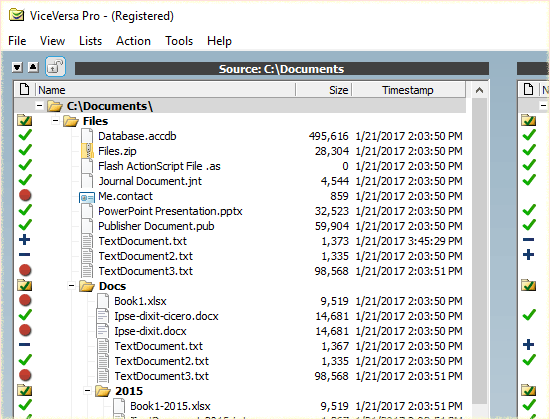
Vise Versa Pro is very powerful tool to compare and synchronize data if you got some money to pay.


4. Automatic synchronization between PC and portable harddrive when you insert and remove them if you'd like to pay.

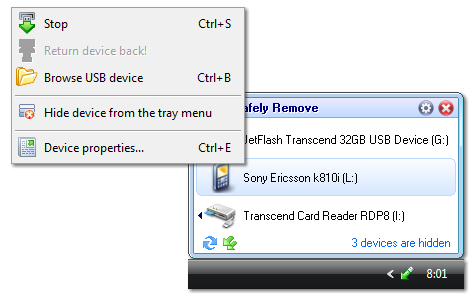
USB Safely Remove is a very powerful tool. It can automatically run command or program when you insert/remove an USB/eSATA device. Highly recommended. For example, you can run FreeFileSync or Vice Versa Pro after you inserting and before removing your portable harddrive to synchronize you data and make sure the data is up-to-date. I would suggest you to buy it.


How do you synchronize your data? Please leave comment below to share your way.

Saturday, 20 March 2010

Use Thunderbird, Lightning, Remember the milk, Twitter and Google Calendar to organize tasks and calendars. Part 2.

In this part, we will talk about using Remember the milk through Twitter, mobile and Thunderbird.

1. Get a Twitter account
First, you need to go to Twitter and sign up. After sign in, click Settings on the top and select Mobile. You can add your mobile number here to tweet on the move by send message to 07624801423.


2. Get a Remember the Milk account and link with Twitter
Then, you need a Remember the Milk account. Just go to Remember the Milk and sign up. After log in, click the Service on the bottom of the window, which is shown in the following picture. I always wonder why they hide it there, which should be on the top of the page somewhere.


There are some official services which are very good. But if you want to use it on your mobile, you need to upgrade to Pro account which will cost $25 per year.  Click the Remember the Milk for Twitter. There is complete instruction on how to use Remember the Milk through Twitter on the page.
First, You'll also need to add rtm
as your friend on Twitter (either by clicking the 'add' link on rtm's profile page, or sending the message
'follow rtm' to Twitter). Then complete the setup in the box on the top right.


Then you can follow the instruction to use Remember the Milk through Twitter, or through Mobile --> Twitter --> RTM.

3. Google Calendar and Gmail sidebar.
You can also add RTM to your Google Calendar, or to your Gmail sidebar.

4. Synchronize with Lightning in Thunderbird
In RTM, click Settings --> Info, you can see the iCalendar address. You can use these address to shown tasks in Thunderbird but you can NOT add, change or delete the tasks in Thunderbird.

If you do not mind to spend about £1 per month, I recommend to use these mobile services to make it easy.


Powered by ScribeFire.

Friday, 30 October 2009

Use Thunderbird, Lightning, Remember the milk, Twitter and Google Calendar to organize tasks and calendars. Part 1.

Hopefully, I will post more than before since today. The content of the bogs will concentrate on how to use freeware/open source software as alternatives of shareware/commercial software. Today I will try to introduce Thunderbird, a free email client from Mozilla, and how to organize tasks and calendars in it, synthesis with Google Calendar and mobile phones.

1. Install Thunderbird, Lightning and Provider for Google Calendar

First, you need to install Thunderbird. There are a lot of instructions out there so I do not want to talk about it here again. Then, download Lightning and Provider for Google Calendar. Install these Add-ons into Thunderbird through Tools -> Add-ons -> Extensions -> Install..., choose the files you just downloaded and install them.
After restart Thunderbird, you should see three buttons on the left bottom corner.

Click the Calendar button will show the calendars you have.

2. Synchronize with Google Calendar


In your Google Calendar, click the arrow on the right side of calendar, select Calendar Settings.

Right click on the ICal button next to Private Address. Select copy link location.


Now go back to Thunderbird, right click in Calendar box, select New Calendar...


Select On the Network, click Next.


Select iCalendar (ICS), paste the calendar address just copied from Google Calendar to the Location box. Click Next.


Type a name for this calendar and also you can change the Color. Click Next then Click Finish. Your calendar is ready now.
If you have more than one Google Calendar, you can repeat the above steps to add them all in the Thunderbird. These calendars are two-way synchronized. Any change in the Google Calendar and Thunderbird will show in both sides.


Double click on the date will open the New Event dialogue, keep an eye on the Calendar name to make sure you are working on the right calendar. Click Save and Close to create the event.

Next blog will talk about using Remember the Milk, Twitter and mobile phone to create, organize and synchronize tasks.


 使用Thunderbird, Lightning, Remember the milk,Twitter和Google Calendar管理与同步日历与任务 (1)

从今天开始,我将争取增加Blog的频率,并将重点放在如何使用免费和开源软件替代商业软件上。
本文将介绍如何使用Thunderbird,Lightning,Remember the Milk,Twitter和Google Calendar来同步日历和任务,提高工作效率。

1. 安装Thunderbird, Lightning和Provider for Google Calendar

从网上下载Thunderbird, LightningProvider for Google Calendar。首先安装Thunderbird,网上有很多教程,这里就不赘述了。愿意的话,也可以安装绿色版。然后在Thunderbird里安装Lightning和Provider for Google Calendar这两个附加组件。
重新启动Thunderbird之后,点击左下角的Calendar(日历)按钮,就会显示日历。

2. 与Google Calendar同步

在浏览器里登录Google Calendar,点击日历名称后面的箭头,选择“日历设置”。
在私有地址那栏里右键单击ICAL按钮,选择“复制链接地址” 。然后回到Thunderbird,在左下方的日历栏的空白处右键单击,选择“新建日历”。然后在对话框中选择“远程(网络)日历”,在下一步选择“iCalendar”,并将刚刚复制的Google Calendar的地址粘贴到地址栏中。下一步命名这个日历,可以更改颜色,选择“下一步” ,然后选择“结束”。
现在你的Google Calendar应该显示在日历中了。如果你有多个Google Calendar,你可以依次添加他们。这些日历是和Google Calendar双向同步的。
单击日期就可以新建日程。注意选择正确的日历名称。单击“保存并关闭”就可以创建新的日程了。

下一篇将介绍使用Remember the Milk,Twitter和Lightning来创建和管理任务。

Thursday, 10 April 2008

简单易用的10GB容量免费个人空间

Google 最近推出了Google Sites 服务,任何人只要拥有一个学校或工作地点的email地址,就能获得至少10GB的个人主页空间。支持上传文件或附件,每个大小限制为10MB。没有任何其他限制。可以根据个人需要设置访问者权限,并能够邀请其他朋友一起共同管理。其他特点包括可以整合进其他Google服务,例如Google Calendar,Google Documents。点这里获得自己的空间。
注意,无论你是否是GoogleMail的使用者,都可以使用这个服务,登录时不要填写你的GoogleMail地址,要填写学校或工作地点的email地址。